
ClickUp tasks, subtasks, and checklists each have a different job. Knowing when to use each one can clean up your task lists and make it much easier to see who is responsible for what.
Between my DMs and the ClickUp Audits I’ve been doing lately, I keep getting questions about the “basics” of ClickUp.
Which, fair.
There is SO much ClickUp content out there about dashboards, automations, AI, custom fields, and all the fancy things you can build.
And listen, gimme a pretty dashboard and I won’t shut up.
But none of those things are going to fix a workspace where the foundation doesn’t make sense.
One of the most common things I fix when I start working inside a client’s ClickUp account is how they’re using tasks, subtasks, and checklists.
They’ve been using ClickUp for months, sometimes years, but everything feels chaotic because those three things are being used interchangeably.
I don’t blame anyone. ClickUp gives you ALL the options, which is amazing, but it can also get overwhelming fast, especially once multiple people are working inside the same account.
So, back to basics we go.
What Is a Task in ClickUp?
Tasks = the actual work.
A ClickUp task is the main unit of work that needs to get done.
It can have an assignee, due date, status, priority, custom fields, attachments, comments, and everything else you need to actually move that piece of work through your workflow.
Think of it as the thing you’d normally put on a sticky note.
(And now every time you write something on a sticky note, STOP IT. Put that ish in your PM tool.)
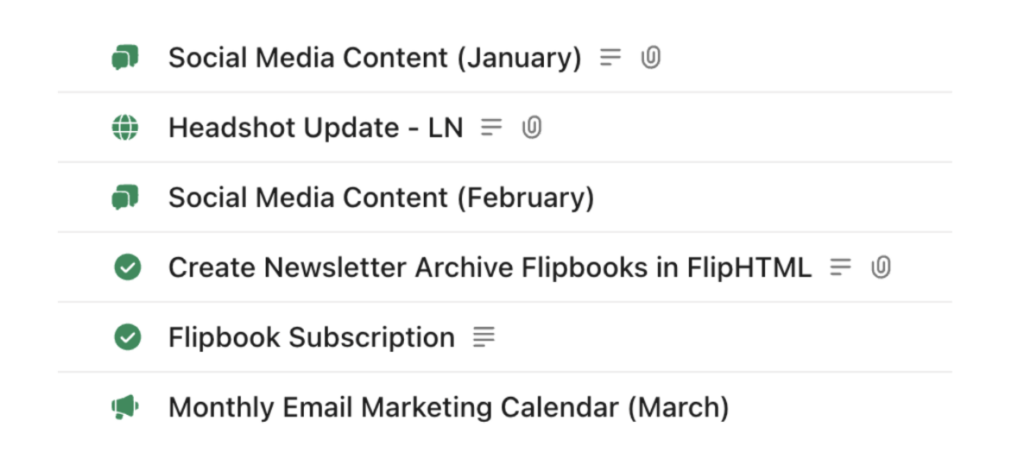
For example, a task might be:
- Create Monthly Newsletter
- March Social Media Content
- Update Website Headshots
- Create Newsletter Archive
If you or someone on your team needs to own it, track it, and move it through a workflow, it’s probably a task.
What Is a Subtask in ClickUp and When Should You Use One?
Subtasks = a piece of a bigger task.
Here’s where some ClickUp accounts start to get mushy.
A subtask is still its OWN task. It can have its own assignee, due date, and status.
The difference is that it lives underneath a larger parent task.
The question I want you to ask is:
Does this piece of work need its own assignee or due date? → If yes, it probably needs to be a subtask.
Let’s use social media content as an example.
We batch one of my client’s social media content a month in advance. There are multiple people involved in the process, each with a different role.
The parent task is the monthly social media deliverable.
Underneath that, we have subtasks for things like drafting topics and captions, creating graphics, internal edits, submitting content to the client, client edits, and scheduling.
Each part needs to happen at a different point in the workflow. Different people own different pieces.
THAT is when subtasks make sense.
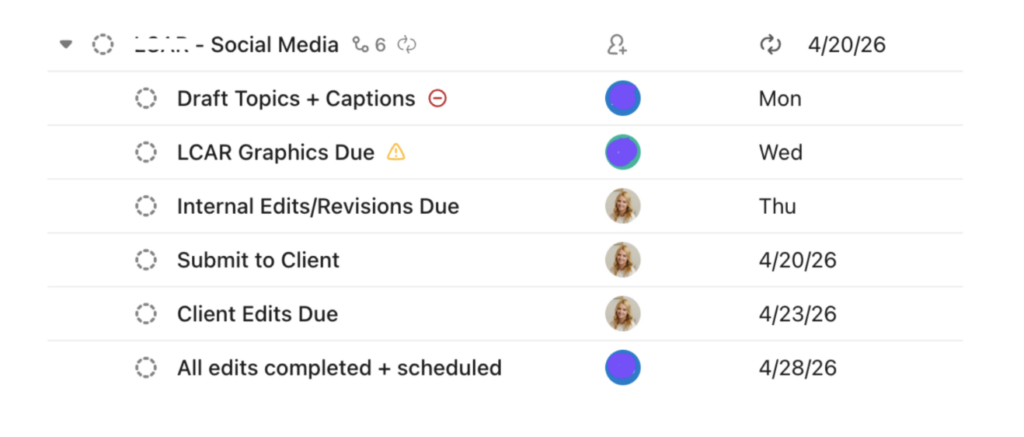
The high-level parent task tells me when the final deliverable is due.
The subtasks give my team the internal deadlines we need to actually hit that date.
You can take this even further with dependencies in ClickUp. For example, one subtask can block another from starting until it’s complete.
Very useful. Slightly more advanced. We’ll save that rabbit hole for another day.
What Is a Checklist in ClickUp?
Checklists = steps within a task. That’s it.
A checklist is NOT the same thing as a task or subtask.
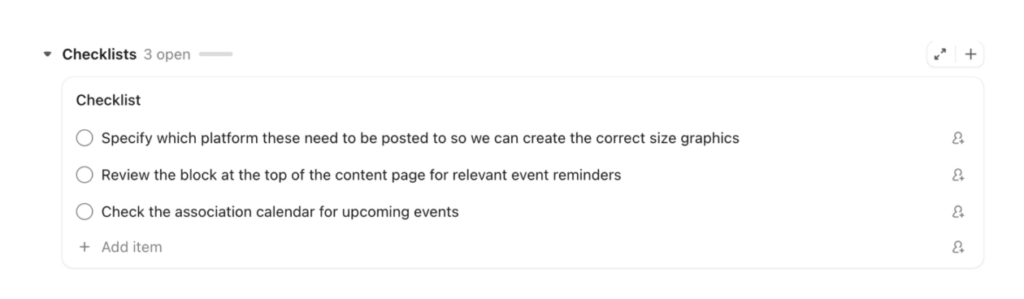
I use checklists for small steps someone needs to remember while completing the larger task.
For example, maybe your social media task has reminders to:
- Check the association calendar for upcoming events
- Review the content page for event reminders
- Confirm which platforms need graphics
Those don’t necessarily need to become individual pieces of work floating around your team’s ClickUp.
They’re reminders that help someone complete the actual task correctly.
And a VERY important distinction:
- Checklists should not replace your SOPs.
- A checklist reminds someone who already understands the process what they need to do.
- An SOP teaches someone how to do it.
I actually don’t use checklists heavily because I have a custom field inside my tasks that links directly to the relevant SOP. You can take the girl out of Human Resources, but never Human Resources out of the girl.
ClickUp Tasks vs Subtasks vs Checklists: Why the Difference Matters
Here’s where this seemingly tiny distinction starts affecting your entire workspace.
When people create a separate task for:
Every. Single. action item. their task lists become insane.
And if your task list is insane, you’re going to ignore it.
Grouping related action items underneath the appropriate parent task keeps your ClickUp workspace much easier to navigate while still making individual responsibilities visible.
But you can also go too far in the opposite direction.
If you use checklists for work that SHOULD be subtasks, important work becomes invisible.
That “Design Graphics” item buried inside a checklist?
It isn’t showing up on your designer’s task list. It doesn’t have a due date pulling it into their weekly view. It’s just sitting there waiting for someone to remember it exists.
Which is exactly what your project management system is supposed to prevent.
When to Use Tasks, Subtasks, and Checklists in ClickUp
Here’s my quick gut check:
1. Does this need to show up when you look at your workload from a high level? → If yes, it needs to be a task or subtask.
2. Is it part of a larger deliverable but needs its own owner or deadline? → Make it a subtask and keep it connected to the parent task.
3. Is it simply a step or reminder for the person completing the work? → That can probably be a checklist item.
4. Does someone need instructions for HOW to complete it? → That belongs in an SOP.
This is less about following some perfect ClickUp rulebook and more about making sure your workspace reflects how the work actually happens.
How to Organize Tasks and Subtasks in ClickUp
Once you understand the hierarchy, your workspace becomes much easier to clean up.
Take one of your recurring deliverables and work backward.
Maybe your task is “Monthly Newsletter”.
Underneath it, you could have subtasks for writing the copy, designing the email, client approval, revisions, and scheduling if those pieces have different owners or deadlines.
Then, inside the appropriate task or SOP, you might have smaller reminders that help the person complete their part correctly.
Now instead of six unrelated tasks floating around your workspace, you have one clear deliverable with all of the work connected underneath it.
Bonus tip: If you find yourself recreating the same subtasks or checklists every month, save the task as a template.
Please stop rebuilding the same process from scratch. I beg of you!!!
ClickUp Tasks vs. Subtasks: A Simple Rule to Remember
If you remember ONE thing from this entire blog, make it this:
If the work needs its own owner, deadline, or visibility in your workflow, it probably needs to be a task or subtask.
If it’s simply a reminder for how to complete the work, it can probably be a checklist item.
And if someone needs instructions for how to complete the process? That belongs in your SOP.
One Action Item You Can Implement Today
Pick ONE list inside your ClickUp account and audit it.
Look through your current setup and ask yourself:
- Are there standalone tasks that should really be subtasks underneath a larger deliverable?
- Are there subtasks that are actually simple checklist items or instructions that belong in an SOP?
- Are there checklist items hiding important work that needs its own assignee and due date?
- Are you not using subtasks at all?
You do not need to reorganize your entire ClickUp account today.
Start with one list.
Cleaning up the hierarchy alone can make your views less cluttered, make your team’s workload more visible, and make ClickUp feel a whole lot easier to use.
And if you’re not using ClickUp, this still applies. Most project management tools have some version of this hierarchy.
The big takeaway is simple: Not every action item needs to become its own task.
Your project management system should help you see the bigger picture, not give you another never-ending list you want to close your laptop and walk away from.
Need Help Organizing Your ClickUp Workspace?
If you’re reading this while side-eyeing your own ClickUp workspace, I can help.
Whether you need someone to identify what isn’t working, clean up one specific process, build out your workspace, or help you maintain what you already have, my ClickUp services are designed to meet you where your business is right now.
We can figure out what actually needs fixing instead of adding more features to a workspace that already feels overwhelming.